
SolidCP Windows 2016 support
09 - 11 - 2016
v1.2.0 stable has been released!
01 - 04 - 2017
Exchange can use a transport rule to send messages marked as spam by MailCleaner to users’ Junk Email folders. This historical guide describes both an Exchange Management Shell command and the equivalent Exchange Control Panel (ECP) steps.
Before applying this historical rule: Check the commands and ECP options against your Exchange and MailCleaner versions. Ensure the header is supplied by a trusted mail path and cannot be spoofed by external senders. Test with both spam and legitimate messages, and review existing transport-rule priorities before changing mail flow.
The rule checks the X-MailCleaner-SpamCheck message header rather than the subject, so the word “spam” in a subject alone does not trigger it. An exception excludes headers matching not spam.
Create the rule with Exchange Management Shell
The original script reads the organisation’s junk threshold, adds one, and creates the rule with priority 0. Run it in the Exchange Management Shell only after checking the resulting SCL value and the rule’s effects in your environment.
$SCLJunkThreshold = (Get-OrganizationConfig).SCLJunkThreshold
$SCLJunkThreshold++
New-TransportRule -Name "Move Spam to Junk folder" -HeaderMatchesMessageHeader "X-MailCleaner-SpamCheck" -HeaderMatchesPatterns "spam" -SetSCL $SCLJunkThreshold -ExceptIfHeaderMatchesMessageHeader "X-MailCleaner-SpamCheck" -ExceptIfHeaderMatchesPatterns "not spam" -Priority 0
Check the junk threshold for the ECP method
For the manual method, first check the organisation’s SCL settings in the Exchange Management Shell:
Get-OrganizationConfig | fl *SCL*
Create the transport rule in ECP
The following labels reflect the ECP interface shown in the original guide. Use the SCL value one above the threshold you checked; the original example used 5.
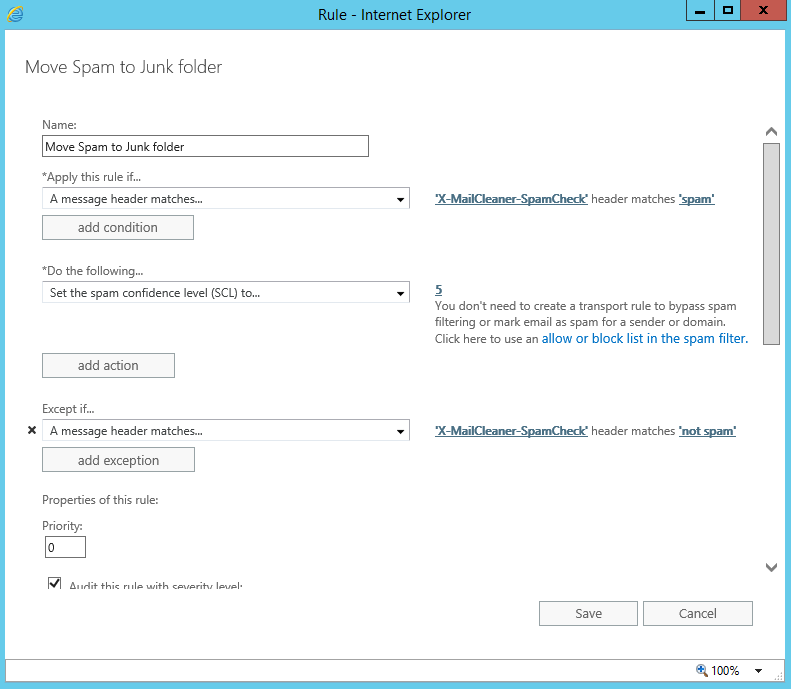
- Sign in to Exchange ECP and open Mail Flow → Rules.
- Select +, then Create a new rule. In the New Rule window, select More Options… to expose header checks.
- Name the rule, for example Move Spam to Junk folder.
- Under Apply this rule if…, select A message header… and then matches these text patterns. Set the header to
X-MailCleaner-SpamCheckand the pattern tospam. - Under Do the following…, select Modify the message properties…, then Set the spam confidence level (SCL) to…. Set it one above the checked SCLJunkThreshold; the original example used 5.
- Under Except If, add an exception using A message header… and matches these text patterns. Set the header to
X-MailCleaner-SpamCheckand the pattern tonot spam. - The original guide sets Priority to 0, making it the first rule. Review the effect on existing rules, then save.
Thank you to bluechip Computer AG for providing the original guide.

- More then 15 years of experience with Linux and Unix.
- Open source enthusiast